
Select and order gift add-on products
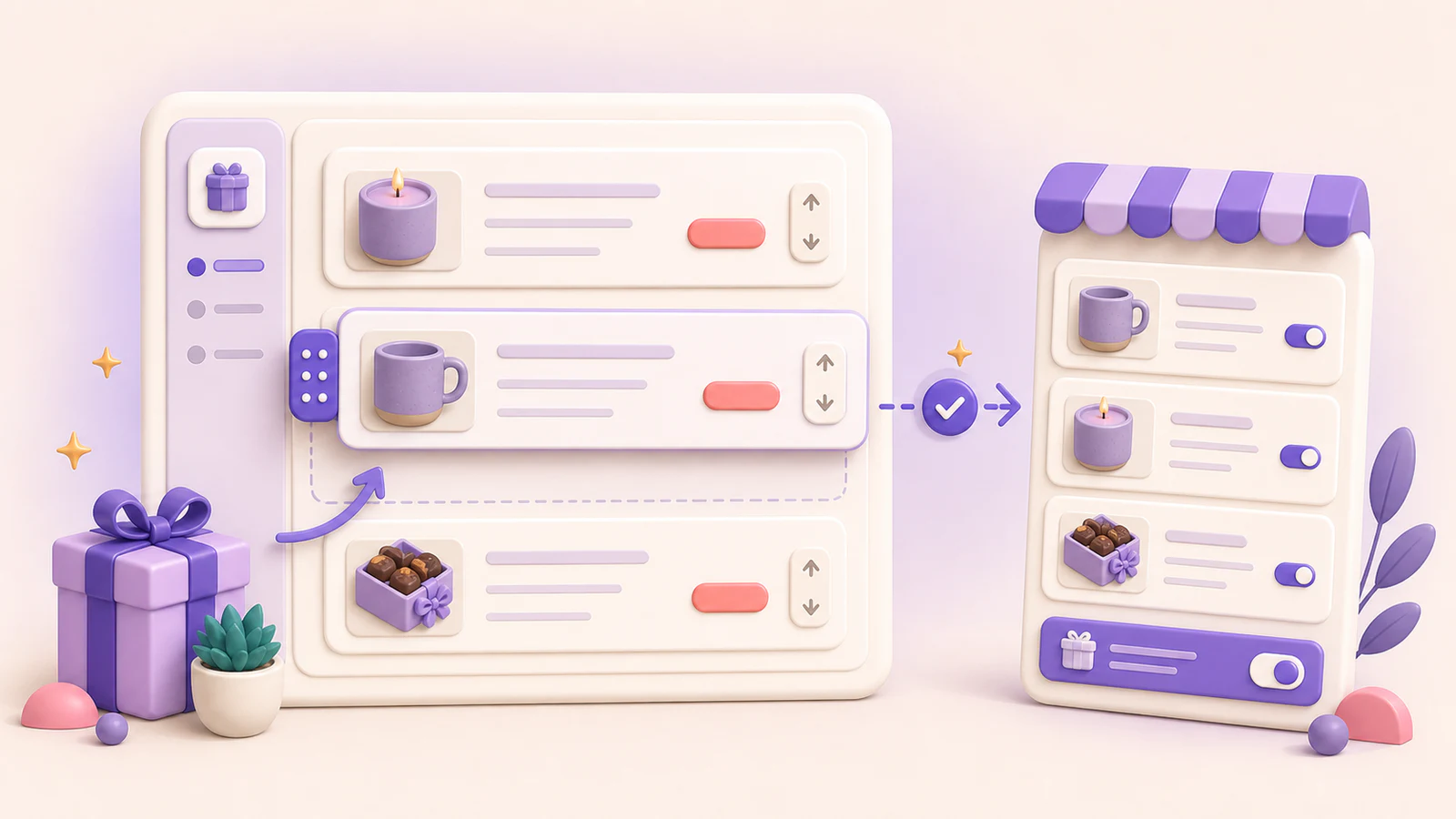
Gift add-ons let customers include optional products from your Shopify catalog with a gift. They are available with an active Growth or Business plan.
Select add-on products
- Open Widget in Gifty.
- In Gift add-ons, select Select products.
- Choose the exact product variants customers can add, then confirm the selection in Shopify’s picker.
Each selected entry is one purchasable Shopify variant. If a product has sizes, colors, or other options, select each exact variant you want to offer. Customers do not choose a different variant inside the Gifty widget.
Reopening the picker keeps selected variants in their current order. Variants you deselect are removed, and newly selected variants are added to the end of the list. Gifty also refreshes their product name, image, and price from Shopify.
Configure add-ons by widget profile
The add-on list belongs to the configuration selected in Widget profile. Select Default or a custom profile before opening the product picker, then choose the variants that should be offered in that profile’s storefront locations.
Default and all custom profiles can reference up to 20 unique Shopify variants in total. The same variant can appear in more than one profile without using another slot.
If a customer selects an add-on and then opens a location whose profile does not offer that variant, the selected add-on remains visible there with a checked control. The customer can remove it without returning to the original location. This retained selection does not add the variant to the current profile’s available add-on list.
Change the storefront order
The product rows show each variant’s thumbnail, display name, and price. You can reorder them in any of these ways:
- Drag a row to its new position.
- Use Move up or Move down on the row.
- Focus the row with the keyboard, then press Alt+Up Arrow or Alt+Down Arrow.
The selected profile’s preview updates immediately. Select Save to publish the new order, or select Discard to restore the last saved order. Use Remove when you no longer want to offer a selected variant in that profile.
What customers purchase
The storefront shows available add-ons in the saved order. A customer may select more than one add-on, and each selected add-on contributes one unit to that gift selection. The products then appear as ordinary Shopify cart lines, so Shopify remains responsible for current pricing, inventory, discounts, tax, fulfillment, and checkout acceptance.
If your plan changes
On Basic, or while the subscription is inactive, saved add-ons are read-only in the editor and do not appear on the storefront. Gifty keeps the saved selection and order, so they return when an active Growth or Business subscription is restored.
Removing an add-on also clears its gift selection. Gifty does not automatically add it back. Select it explicitly in the widget to buy it again. Other gift messages stay saved.