
Use widget profiles for different storefront locations
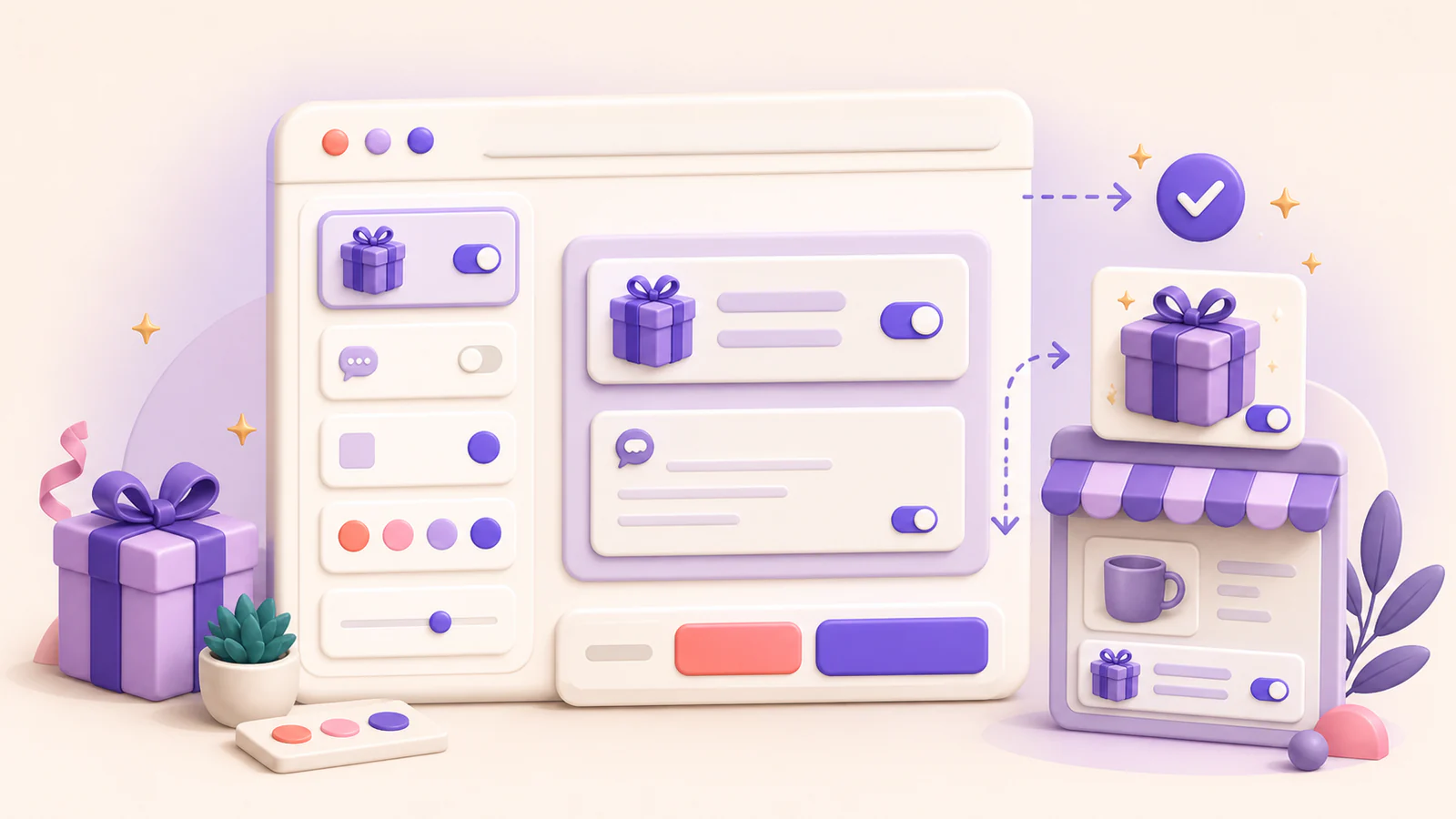
Widget profiles let the same Gifty installation use different copy, fields, add-ons, product rules, or styles in different storefront locations. For example, you can keep a compact cart drawer widget while showing a more detailed experience on product pages.
Understand Default and custom profiles
Your existing widget configuration is the Default profile. It is checked after custom profiles and applies only when its storefront location and any relevant product rules match.
Each custom profile can enable any combination of these storefront locations:
- Product
- Cart
- Cart line item
- Drawer
- Drawer line item
The main Enable Gifty.AI on the storefront switch is shared by every profile. Order tag automation is also shared. Other widget settings in the editor belong to the profile selected in Widget profile.
Add a custom profile
- Open Widget in Gifty.
- In Widget profile, select the configuration you want to use as a starting point.
- Select the Add widget profile button beside the selector.
- Enter an internal profile name, such as
Cart drawer, and select Add profile. - In Availability, enable only the storefront locations where this profile should apply.
- Configure its rendering order, language profiles, customer-facing copy, fields, add-ons, product rules, and style.
- Review the selected profile in the live preview, then select Save.
The new profile copies the selected profile’s settings, but all of its storefront locations start turned off. This prevents an unfinished profile from overriding the published experience accidentally.
You can create up to 20 custom widget profiles.
Understand profile priority
When more than one profile matches the same location, Gifty uses this order:
- The newest matching custom profile
- Earlier matching custom profiles, from newest to oldest
- Default
For example, when Custom 2 and Custom 1 both match, Gifty checks Custom 2, then Custom 1, then Default. For predictable results, give custom profiles distinct locations whenever possible. If locations must overlap, treat the most recently created matching profile as the override.
Product rules narrow matching on product and line-item locations. Product locations support selected products and Shopify product tags; line-item locations support selected products because Shopify’s cart data does not include product tags. Cart and drawer profiles are selected by their enabled location, so use separate custom profiles when those locations need different behavior.
Configure languages and add-ons per profile
Each widget profile has its own language profiles, default locale, and customer-facing copy. Add the languages required for that storefront experience inside the selected widget profile.
Gift add-ons are also configured per widget profile. Across Default and all custom profiles, the widget can reference up to 20 unique Shopify variants. If a customer selected an add-on in another location, Gifty keeps that selected item visible in the current widget so the customer can remove it, even when the current profile does not normally offer it.
Delete or discard a profile
Select a custom profile and choose Delete to remove it from the draft. Default cannot be deleted. Select Save to publish the removal, or Discard to restore the last saved configuration.
After publishing, test every enabled location in the active theme. Include products that match and do not match any product rules so you can confirm the expected custom profile, Default, or hidden state.